
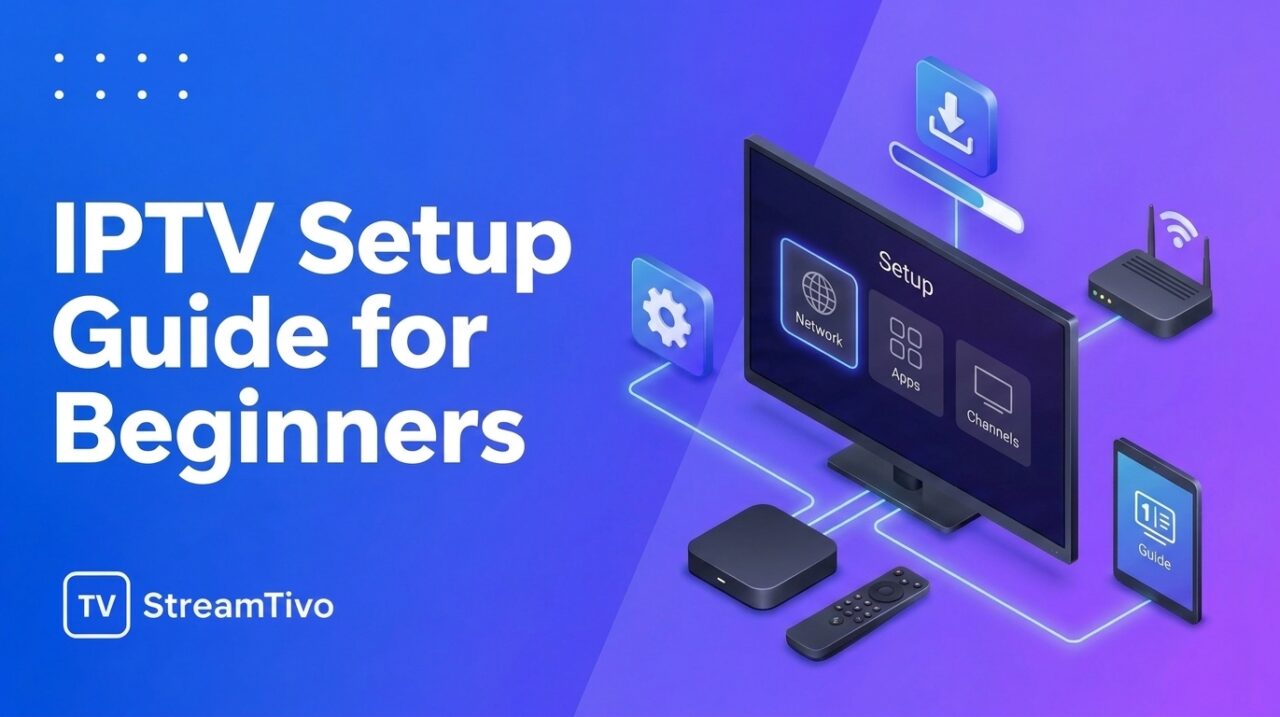
IPTV is a convenient way to watch television over an internet connection instead of relying only on traditional cable or satellite services. However, if you are new to IPTV, getting started can seem confusing. You may wonder which device to use, which app to install, and how to connect your subscription.
This IPTV setup guide for beginners explains the process step by step. Whether you want to watch IPTV on a Smart TV, Firestick, Android device, smartphone, or computer, you will learn the basics needed to get started.
What Do You Need to Set Up IPTV? IPTV Setup Guide for Beginners
Before setting up IPTV, make sure you have the following:
- A stable internet connection: A reliable connection helps reduce buffering and interruptions.
- A compatible device: This could be a Smart TV, Amazon Fire TV Stick, Android TV box, smartphone, tablet, or computer.
- An IPTV application: You need a compatible media player to load and play your IPTV service.
- IPTV subscription details: Depending on your provider, you may receive a username, password, server URL, M3U playlist, or another supported connection format.
- An active subscription or test access: Make sure your account details are valid before starting the setup.
The exact requirements depend on your device and the IPTV provider you choose.
Step 1: Choose Your Device
The first step is deciding where you want to watch IPTV. Most beginners can use a device they already own.
Smart TV
Many Samsung, LG, Android TV, and Google TV models support IPTV player applications. Available apps vary depending on the television’s operating system and model.
If you prefer watching on a large screen without connecting an additional device, a compatible Smart TV app may be the simplest option.
Amazon Fire TV Stick
A Fire TV Stick connects to your television’s HDMI port and allows you to install compatible streaming applications. It is a popular option for people who want to add streaming features to an existing TV.
Android TV Box
An Android TV box can provide access to compatible IPTV players and other streaming apps. Before buying one, check its specifications, software support, and compatibility with your preferred applications.
Smartphone, Tablet, or Computer
You can also use IPTV on a compatible Android or iOS device, tablet, or computer. This is useful if you want to watch while travelling or test your service before setting it up on your television.
Step 2: Install a Compatible IPTV Player
An IPTV player is an application that plays content using a supported playlist or account connection. The player itself may not include television channels or subscriptions.
Choose a player that supports your device and the connection format supplied by your IPTV provider.
To install an application:
- Open your device’s official app store or supported application marketplace.
- Search for a compatible IPTV player.
- Check the app’s features, compatibility, and requirements.
- Install the application and open it.
- Follow the initial setup instructions.
Only download applications from trusted sources. Avoid unofficial downloads that request unnecessary permissions or contain suspicious files.
Important: Some IPTV players are free, while others require a one-time payment or subscription. Paying for a player does not necessarily provide access to television content.
Step 3: Enter Your IPTV Subscription Details
After installing the player, you need to connect it to your IPTV service.
Your provider should explain which connection method to use. Common methods include:
Option 1: M3U Playlist
An M3U playlist is a file or URL containing information used by compatible players to access available streams.
To use this method:
- Open your IPTV player.
- Select the option to add a playlist or playlist URL.
- Enter the M3U URL provided by your service.
- Save the details and allow the playlist to load.
Some applications may ask you to enter a playlist name as well.
Option 2: Xtream Codes API
Some services support a connection method commonly called Xtream Codes API. Your provider may supply three details:
- Username
- Password
- Server URL
Open the relevant login option in your IPTV player and enter the information exactly as provided. Save the connection and wait for the application to load the available content.
Do not share your account credentials publicly. If your details stop working, contact your provider rather than repeatedly trying random server addresses.
Option 3: Other Supported Login Methods
Certain services and applications use different connection formats. Always follow the instructions provided for your specific device, player, and subscription.
You should never need to guess your login details or use another customer’s account.
Step 4: Load Your Channels and TV Guide
Once your subscription details have been accepted, the IPTV player may begin loading the available content.
Depending on your service, you may see categories such as:
- Live TV
- Movies
- TV series
- Favourites
- Recently watched
- Electronic Program Guide (EPG)
The Electronic Program Guide displays programme information, such as show titles, schedules, and descriptions, when the service provides compatible guide data.
If your channels appear but the programme schedule is missing, check whether your player supports EPG and whether the correct guide information has been configured.
For more details, read our guide to IPTV EPG and how an Electronic Program Guide works.
Step 5: Test Your IPTV Connection
Before settling in to watch, test a few channels and features.
Try the following:
- Open several channels to confirm they play.
- Check whether the audio and video are working correctly.
- Test the channel list and categories.
- Open the programme guide if one is available.
- Check playback on your home internet connection.
If you experience buffering, first check your internet connection. Pause downloads on other devices and try moving closer to your Wi-Fi router.
For a more detailed solution, see our IPTV troubleshooting guide to learn how to diagnose common playback problems.
Ready to explore IPTV? Visit StreamTivo to learn about our available subscription options and check whether a free IPTV trial is available. You can test compatibility with your device and explore the service before choosing a subscription.
Step 6: Improve Your Streaming Experience
A few simple adjustments can make IPTV easier to use.
Use a Reliable Internet Connection
A stable connection is often more important than having an extremely high advertised internet speed. Other devices, network congestion, and Wi-Fi interference can affect playback.
For a more consistent connection, consider using Ethernet if your device supports it. Otherwise, connect to a strong Wi-Fi signal.
Keep Your Device Updated
Install operating system and application updates when available from trusted sources. Updates can improve compatibility, fix bugs, and address security issues.
Choose the Appropriate Video Quality
If your application allows you to select video quality, choose an option suitable for your internet connection and device. Higher resolutions generally require more bandwidth.
Keep Your Login Details Safe
Store your subscription information somewhere secure. Avoid sharing account details in public forums or with people you do not trust.
Use a Compatible Device
Older devices may struggle with certain applications or video formats. If playback remains poor despite a stable connection, check the device’s specifications and the player’s compatibility requirements.
How to Set Up IPTV on Different Devices
The general process is similar across devices, but the installation steps differ.
IPTV on a Smart TV
- Connect your television to the internet.
- Open the TV’s app store.
- Install a compatible IPTV player.
- Add your playlist or subscription credentials.
- Wait for the content to load and test playback.
For model-specific instructions, see our guide on how to install IPTV on Samsung TV.
IPTV on Amazon Firestick
- Connect your Fire TV Stick to your television and Wi-Fi.
- Open the app marketplace.
- Install a compatible IPTV player.
- Enter your subscription details.
- Test your channels and programme guide.
For more detailed instructions, read our guide on how to install IPTV on Firestick.
IPTV on Android TV
- Connect your Android TV to the internet.
- Open Google Play or the supported app store.
- Install a compatible IPTV player.
- Add the connection details supplied by your provider.
- Load and test the available content.
IPTV on a Smartphone or Tablet
- Connect your device to Wi-Fi or mobile data.
- Install a compatible IPTV application from the official app store.
- Add your playlist or account information.
- Test playback and adjust the settings if necessary.
Remember that the exact menus and supported login methods depend on the application and device.
Common IPTV Setup Problems and How to Fix Them
Even a straightforward setup can sometimes run into problems. Here are a few common issues and possible solutions.
IPTV Channels Are Not Loading
Check that your internet connection is working and that your subscription is active. Then verify that your playlist URL or login details have been entered correctly.
If the problem continues, contact your provider to confirm that the service is available.
Invalid Username or Password
Check for typing mistakes, extra spaces, or incorrect capitalisation. Confirm that you are using the correct server URL and account details.
If your subscription has expired or your credentials have changed, request updated information from your provider.
IPTV Keeps Buffering
Test your internet connection, restart the application, and reboot your router if necessary. If possible, try Ethernet or a stronger Wi-Fi signal.
You can also test another channel to see whether the issue affects all content or only a particular stream.
Channels Work but the EPG Is Missing
Your player may not have loaded the guide data, or the service may not provide it in a compatible format. Check the EPG settings and refresh the guide if your application supports that option.
The IPTV App Crashes
Restart your device, check for app updates, and make sure you have enough available storage. If necessary, consult the application’s official support instructions before reinstalling it.
Is IPTV Easy for Beginners?
Yes. For most people, setting up IPTV involves just three main tasks: choosing a compatible device, installing a suitable player, and entering the connection details supplied by the service.
The main differences are the device’s operating system and the login method supported by your provider. Once the connection is configured, everyday use is generally similar to using other streaming applications.
Before subscribing, check device compatibility, supported features, pricing, renewal terms, and customer support availability. Also confirm that the service is authorised to distribute the content it offers in your location.
Start Your IPTV Setup with StreamTivo
Ready to explore IPTV? StreamTivo can help you understand your available setup options and choose an approach that fits your device.
If you are interested in trying the service before choosing a subscription, check whether a free IPTV trial is available.
Choose your device, follow the setup steps, and test your connection before settling in to watch. If you need assistance, contact the provider for help with compatible devices and connection details.
Want to experience smooth IPTV streaming before subscribing? Request your free IPTV trial today and explore our service, check the streaming quality, and see if it’s right for you. No need to commit before trying it out!

Related Articles:
- How to install IPTV on Firestick
- How to install IPTV on Samsung TV Guide 2026
- How to install IPTV on Android TV 2026
- How to fix IPTV buffering
- IPTV troubleshooting guide
- IPTV EPG Explained: What Is an Electronic Program Guide? – 2026
- IPTV Setup Guide for Beginners: How to Get Started Step by Step 2026
- IPTV Subscription: How to Choose the Right Plan in 2026
- IPTV USA: A Complete Guide to Internet TV in the United States
- IPTV Service: How to Choose a Reliable Provider in 2026